Teleprompter for Video
- 4.6
- Rating
- 1.00M
- Installs
- Free
- Price

 Analysis by App-foxy
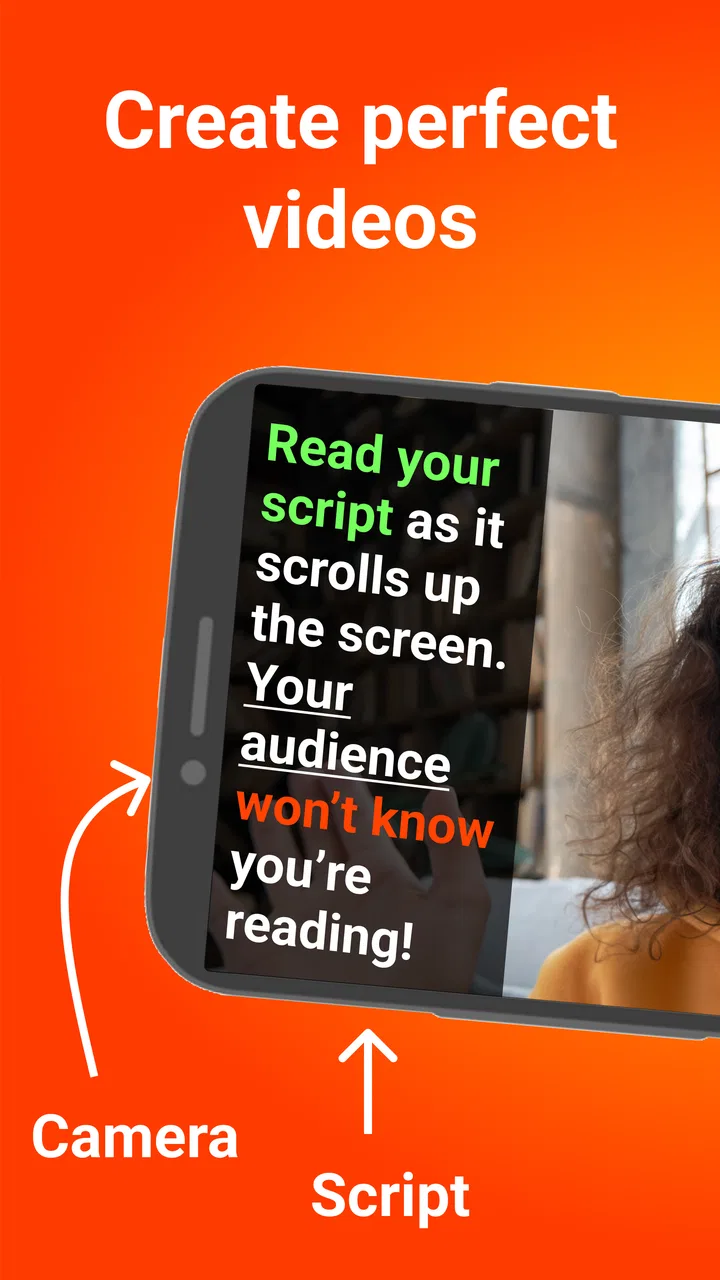
I started using Teleprompter for Video because I wanted to record short videos without looking down at a script every few seconds. That sounds like a small problem, but it changes the whole result: my delivery feels more natural, I lose fewer takes, and I can concentrate on the person watching instead of remembering every sentence. The app combines a scrolling prompter with video recording and caption or subtitle tools, so it is aimed at people who want to create presentable clips without building a complicated studio setup.
In my experience, its strongest appeal is practical rather than flashy. It gives me a way to prepare what I want to say, keep the words close to the camera, and finish with a more accessible video. That makes it useful for vlogs, tutorials, product explanations, school presentations, social posts, and messages recorded for people who prefer reading along. It is a free productivity app from Norton Five Ltd, with optional in-app purchases ranging from $5.49 to $21.99 per item.
How it works when more than one person uses the device
A realistic household example is a shared phone or tablet used by several people. One person may need it to record a cooking demonstration, another may use it for a work update, and a teenager may want to practise a presentation. In that situation, the value of a teleprompter is that each person can prepare a separate script for a specific task instead of trying to remember everything during recording.
You May Also Like

 Blood Strike: 2.5 Anniversary
Blood Strike’s Loadouts Turn Every Drop Into a Tactical Gamble
A close look at Blood Strike’s custom loadouts: how fast access to signature weapons reshapes its battle royale rhythm, rewards preparation, and narrows the gap between fights.

 Pandora - Music & Podcasts
Pandora’s Music Is Easy to Start, but Harder to Recover
Pandora’s strength is its low-effort path from a seed to a station. Its weak spot is how much confidence it asks you to place in connection, setup, and quiet recovery.

 8 Ball Pool
 Is Built on Rivalries, Rematches, and Routine
A close look at the rivalries, rematches, shared routines, and unanswered safety questions that turn a quick pool match into a persistent mobile community.

 Samsung Music
’s Quiet Strength Is Playing What You Already Own
Its reach comes less from spectacle than from dependable access to a personal library. That simplicity is both the app’s strongest retention engine and its ceiling.

 AccuWeather: Weather Radar
AccuWeather Review: A Quick, Clear Forecast for Everyday Decisions
For everyday plans, the best forecast is the one you can understand quickly. AccuWeather makes rain timing, radar, and local conditions easy to act on, with a few trade-offs.

 Hill Climb Racing
Why Hill Climb Racing Still Turns Crashes Into One More Run
A tiny car, a bumpy hill and one more upgrade: Hill Climb Racing keeps resurfacing because its simple chaos makes every near-miss feel personal.
More From Our News Desk



I would treat each recording session as its own small project. Before handing the device to somebody else, I would close the previous script, check the camera framing, and make sure the next speaker has the correct text ready. That simple routine prevents an awkward mistake: starting a recording with the wrong script or leaving a previous speaker's notes visible.
The app is especially helpful when several people have different speaking styles. A confident speaker may only need brief prompts, while someone less comfortable on camera may need complete sentences. I would not force everyone to use the same scrolling speed or script length. A child practising a school talk may need slower movement and larger text, while an adult recording a quick update may prefer short cue lines that encourage eye contact.
There is also a useful distinction between a shared device and a shared account. The app can support a shared recording routine, but I would not assume that separate users, private workspaces, family profiles, or automatic boundaries exist. If the phone belongs to the household, the safest approach is to coordinate manually: give each person a clearly named script and remove or archive material that should not remain on the device.
Preparing a script without making the video sound stiff
The first mistake I made with a teleprompter was writing like I was preparing an essay. That produced long lines, formal wording, and a voice that sounded read rather than spoken. I get better results when I rewrite the text as I would actually say it. Short sentences are easier to follow while the words are moving, and they leave room for pauses, gestures, and eye contact.
For a shared household workflow, I would put the speaker's name at the top of each script and use clear section breaks. For example, a file might begin with “Maya — science presentation” or “Dad — weekly update.” This is not a sophisticated feature; it is simply good organisation. It matters because the app is being used as a recording tool, not as a complete family document-management system.
A useful trick is to write prompts instead of every word when the speaker already knows the subject. Instead of displaying a full explanation of a recipe, I might use cues such as “ingredients,” “show the pan,” and “final tip.” This reduces the temptation to stare at the scrolling text and usually makes the video feel more personal. For a difficult announcement or an exact quotation, I would use the full script and rehearse the timing first.
I also recommend placing natural pauses into the text. A line break after an important point gives the speaker a moment to breathe and lets the viewer absorb the idea. If every sentence runs together, even accurate reading can sound rushed. The app helps with the words, but it cannot decide where a person should smile, demonstrate something, or wait for a reaction. That preparation still belongs to the user.
Setting boundaries before recording
Teleprompter for Video is suitable for general audiences, and its content rating is Everyone. That makes it approachable for household use, but an age label is not a substitute for supervision or good judgement. A younger user may understand how to record a clip while still needing help with what should be shared, where it will be posted, and whether other people appear in the frame.
I would set a few household rules before giving the device to a child or guest. The speaker should know who will see the recording, whether captions are being added, and whether the video is staying on the device or being exported elsewhere. I would also check the background for school papers, addresses, private messages, or other family members who have not agreed to appear.
These boundaries are important because the app makes recording easier. When the technical friction is low, people may create and share something before thinking through the audience. The prompter can improve delivery, but it does not decide whether a recording is appropriate for public posting. For family use, I see it as a tool that benefits from an adult reviewing the first few projects with a younger creator.
On the practical side, I would agree on a handoff routine. The next user should know where to find their script, which camera orientation to use, and whether the previous recording has already been saved. I would avoid leaving personal scripts open on a shared screen. Even harmless notes can reveal private plans, work details, or school information to the next person holding the device.
Coordinating different recording jobs
The app becomes more useful when the household treats recording as a small production process. One person can prepare the wording, another can check the framing, and the speaker can concentrate on delivery. That division works well for a family recipe, a local club announcement, or a school project where one person is presenting and another is operating the phone.
Captions and subtitles add another layer to that coordination. I like the idea of reviewing them before considering a video finished, especially when names, technical terms, or accents are involved. A captioning tool can save time, but automatic or assisted text should not be trusted blindly. A single wrong word can change the meaning of a lesson or make a family member look careless. I would always watch the final version with the sound lowered and read along.
There is a trade-off between reading a complete script and maintaining eye contact. If the text is too dense, the speaker may focus on keeping up rather than communicating. If it is too sparse, the speaker may lose their place. I find the best compromise is to prepare a full script, then edit it into shorter visual units for the actual recording. The full version remains a safety net, while the screen shows only what is needed at that moment.
For a group project, I would record separate sections rather than asking everyone to complete one long take. This makes retakes less frustrating and lets each person work at a suitable pace. It also reduces the chance that a younger or nervous speaker feels pressured because the entire household is waiting for one perfect performance. The app supports the prompter part of that process; the decision to split the work is my own recommended workflow.
Where it fits beside ordinary alternatives
The usual alternative is to place handwritten notes beside the camera or memorise the script. Handwritten notes are inexpensive and can feel natural, but they are difficult to scan while maintaining eye contact. Memorising works for short messages, yet it becomes tiring when the wording must be exact. A separate laptop with a script can be more comfortable for long presentations, although it may pull the speaker's gaze away from the camera and make a shared household setup less convenient.
Another option is a dedicated teleprompter accessory. That can offer a more specialised physical arrangement, but it adds equipment, storage, and setup. Teleprompter for Video is more appealing when I want to use the phone I already have. It keeps the process compact: prepare the words, position the device, record, and work on captions or subtitles in the same general workflow.
It is not automatically the best choice for every project. If I am recording a long lecture, conducting a multi-camera interview, or managing several contributors, a larger production setup may be more comfortable. If the goal is spontaneous footage with no prepared wording, a prompter may even make the result feel over-rehearsed. I would choose this app when clear delivery matters more than complete spontaneity.
The free starting point is another reason it is easy to try, but optional purchases should be considered before building a regular workflow around paid tools. The listed purchase range is $5.49 to $21.99 per item, so I would first test the basic recording routine and decide whether the extra functions are genuinely useful for the household. I would not pay simply because a feature sounds professional; the improvement should solve a real problem in the way the family records.
Age, trust, and responsible use
For adults, the main trust issue is usually privacy around scripts and recordings. A work presentation may contain confidential wording, while a personal video may include details that should not be shared with everyone using the phone. I would keep the device locked when it is not in use and avoid treating a common family phone as a private archive.
For teenagers, the app can be a constructive way to practise public speaking, language learning, or creative video work. I would encourage them to write in their own voice rather than copying a polished script from somewhere else. The prompter should support preparation, not replace understanding. If the video explains a subject, the speaker should still be able to answer basic questions without simply reading the screen.
For younger children, I would use it with an adult nearby, particularly when the recording includes other people or is intended for sharing. The Everyone rating makes the app broadly accessible, but it does not tell me that every recording idea is suitable for every age. The responsible decision depends on the content, audience, and device-sharing arrangement.
Trust also means being clear about who controls the final recording. Before a family member records, I would explain whether the clip is only for practice, whether it will be sent to relatives, or whether it may appear publicly. That conversation is more important than any camera setting. A smooth recording is not a success if someone later discovers that they agreed to practise but not to publish.
What I noticed about everyday use
My favourite use case is a short instructional video made at home. I can prepare the steps in advance, keep the explanation moving, and add captions so the viewer can follow without sound. The workflow is particularly helpful when the speaker needs to demonstrate something with their hands. Instead of looking down at notes, they can keep their attention on the object and glance toward the prompt when necessary.
A second strong use case is rehearsal. Someone preparing a presentation can record a practice version, notice where the pacing feels uncomfortable, and edit the script before presenting to a class or team. This is more useful than simply memorising because it reveals whether the wording sounds natural when spoken aloud. I would record a short section first rather than committing to the complete presentation.
The main friction is that the app cannot remove the need for rehearsal. A badly edited script still produces a bad reading, and a scrolling prompt can become distracting if the pace is wrong for the speaker. There is also a human limitation: even with text near the camera, the eyes can still reveal that someone is reading. I get the most convincing results when I know the meaning of each paragraph instead of encountering it for the first time during the take.
Another limitation is coordination on a shared device. Without a deliberate naming and cleanup routine, scripts and recordings can become confusing. I would not recommend handing the phone around casually if the household expects strong privacy boundaries. The app is good at helping a person speak; it is not a replacement for separate accounts, organised storage, or family media rules.
Device requirements and practical expectations
The app runs on Android devices using version 8.0 or later, which covers a wide range of phones and tablets. That makes it easier to include an older household device in the recording setup, provided the camera and screen are still comfortable to use. I would test the actual device before planning an important presentation, because a supported operating system does not guarantee that every older phone will be pleasant for long recording sessions.
The current version is 3.11.1. I would keep the app updated through the normal platform process, especially if it becomes part of a recurring school, work, or family project. More importantly, I would perform a short test after an update or before a significant recording. Check the script, camera position, audio, captions, and saved result instead of discovering a problem after a ten-minute take.
The app is free to install and has an average rating of 4.6 from around 28 thousand ratings, with more than a million installs. Those figures suggest that it has found a substantial audience, but popularity does not remove the need to judge it against a specific workflow. I would still decide based on whether the phone setup feels comfortable and whether the available tools match the type of video I want to make.
My household verdict
I recommend Teleprompter for Video to families, roommates, and shared-device users who need a simple way to prepare and record clear spoken videos. Its best qualities are the combination of prompting, recording, and captions, plus the flexibility to adapt a script for a nervous beginner or an experienced speaker. It can turn a phone into a practical presentation aid without requiring a separate teleprompter rig.
I would skip it when the project needs advanced production management, when privacy requires genuinely separate user spaces, or when the desired style depends on completely spontaneous conversation. I would also avoid paying for extras until the free workflow has proved useful. The right question is not whether the app can make someone look professional instantly; it is whether it helps that person prepare, speak, review, and share responsibly.
For shared household use, my final advice is straightforward: name every script, agree on the audience before recording, supervise younger users, review captions, and clean up personal material after the session. With those habits, the app becomes more than a scrolling text tool. It becomes a manageable way for different people to create better videos on the same device while keeping expectations, privacy, and responsibility clear.
FAQs for Teleprompter for Video
01What is Teleprompter for Video, and what can I use it for?
Teleprompter for Video is a mobile app designed to help you record videos while reading a prepared script on your phone or tablet. It is useful for presentations, tutorials, online lessons, product demonstrations, social media clips, interviews, and video messages. The script appears on screen as you record, helping you maintain eye contact with the camera and speak more confidently without memorizing every line.
02Can I customize the script and scrolling speed?
Yes, the app generally provides several options for adjusting the teleprompter to your speaking style. Before recording, you can usually change the text size, scrolling speed, margins, alignment, and background or display settings. These controls are particularly helpful when working with longer scripts or when recording in different lighting conditions. It is worth testing the speed first, because a comfortable pace can make the final video sound much more natural.
03Does Teleprompter for Video record videos directly inside the app?
The main purpose of the app is to combine script playback with video recording, allowing you to read while looking toward the camera. Depending on your device and the version installed, it may support front or rear camera recording, basic video settings, and saving the finished clip to your gallery. Camera and microphone permissions are required, so you should grant them only if you want to create and save videos through the application.
04Is Teleprompter for Video free to download and use?
The app can typically be downloaded at no initial cost, but some features may depend on the version available for your device. Free access may include basic script creation and recording, while advanced tools, longer scripts, watermark removal, additional customization, or an ad-free experience may require an in-app purchase or subscription. Check the current store listing carefully before downloading, since pricing and included features can change over time.
05Can I import scripts, and does the app work without an internet connection?
Teleprompter for Video may allow you to create scripts directly in the app and, depending on the platform version, import text from another source or paste it into the editor. Once the application and required content are available on your device, basic prompting and recording can often be used offline. Internet access may still be necessary for downloading the app, synchronizing content, displaying advertisements, or validating premium features.
Pros
- Simple scrolling controls make recording easier for beginners.
- Adjustable text size improves readability on smaller phone screens.
- Supports rehearsing scripts without needing a separate device.
- Useful for presentations
- tutorials
- interviews
- and social media videos.
- Quick setup helps users start recording with minimal preparation.
Cons
- Long scripts may require frequent scrolling adjustments while recording.
- Reading naturally can take practice when looking near the camera.
- Some advanced recording tools may require a paid upgrade.
- Performance can vary on older phones during video recording.
- A poorly formatted script may be difficult to follow on screen.

Teleprompter for Video
Gallery